How to Find the Variant ID in Shopify
Learn how to find the variant ID of any product within Shopify.
Variants are a key component of every product in a Shopify store. They allow store owners to offer their products in different combinations of options, and as of 2025 up to 2,000 of them can be created per product, offering enough flexibility for most stores. Due to this, there are plenty of situations where a variant ID might be needed, for example when generating a Cart Permalink or when using certain theme settings that ask for a variant ID in the absence of a theme setting of type variant.
Getting the Variant ID for Products With Multiple Variants
This is the simplest scenario. In this case you only need to go to your store’s page and navigate to the product with the variant ID that you want to get. From there, start changing variants and take note of the URL, at the end of it there should be something like variant={number}, that number is the variant ID.
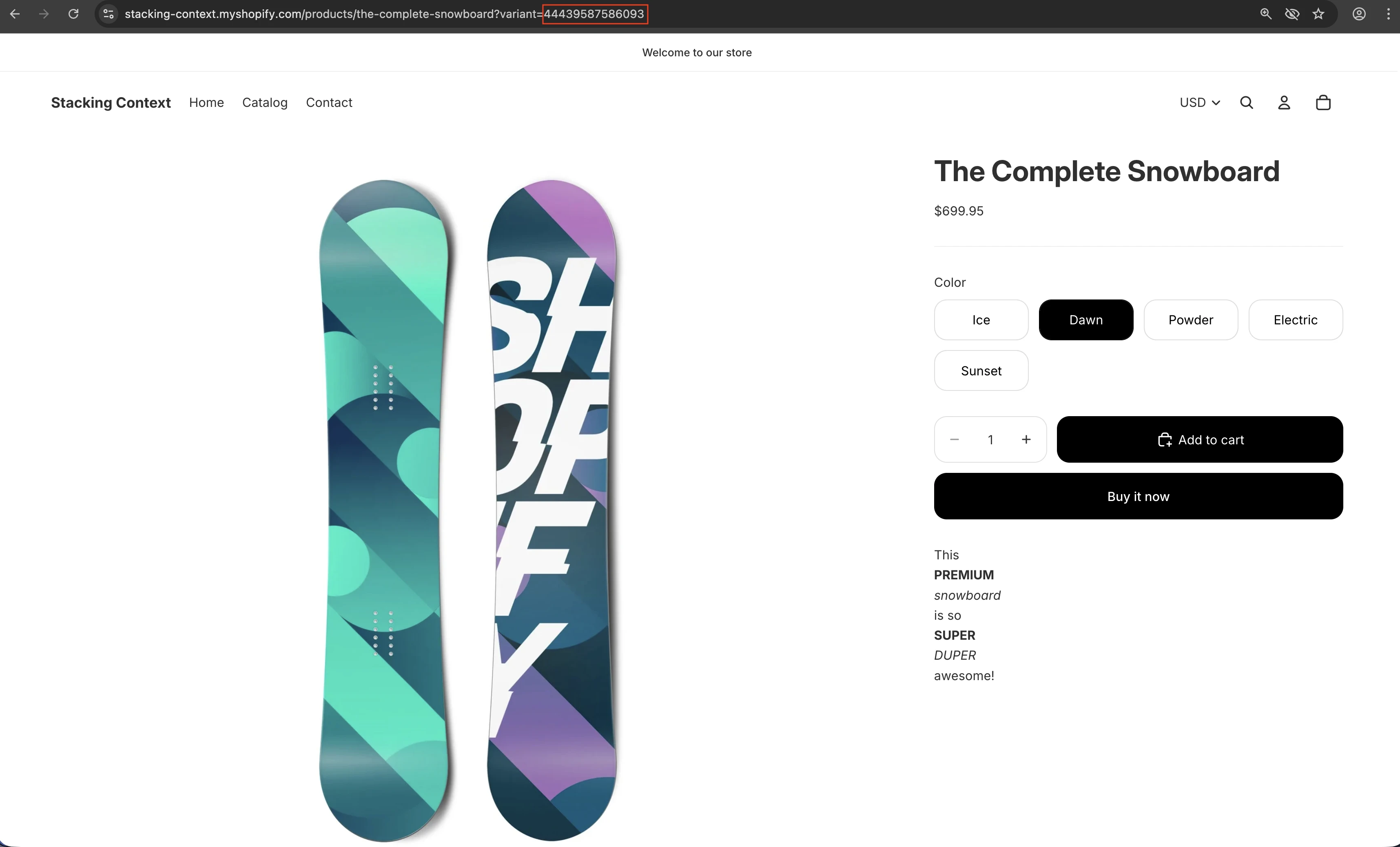
Shopify follows this pattern in all stores that have a Liquid theme. The exception here is when a product has no merchant-defined variants. In those situations Shopify does create a variant internally as it seems to be a critical data structure in how they manage each store’s information, but this id is not exposed in the URL the same way it would normally be exposed.
Getting The Variant ID for Products With a Single Variant
When a product has no merchant-defined variants, a way to get its variant ID is to grab it from the Shopify Admin instead. For this you should navigate to that product’s page in the Shopify Admin and add .json at the end of the URL as shown in the following image
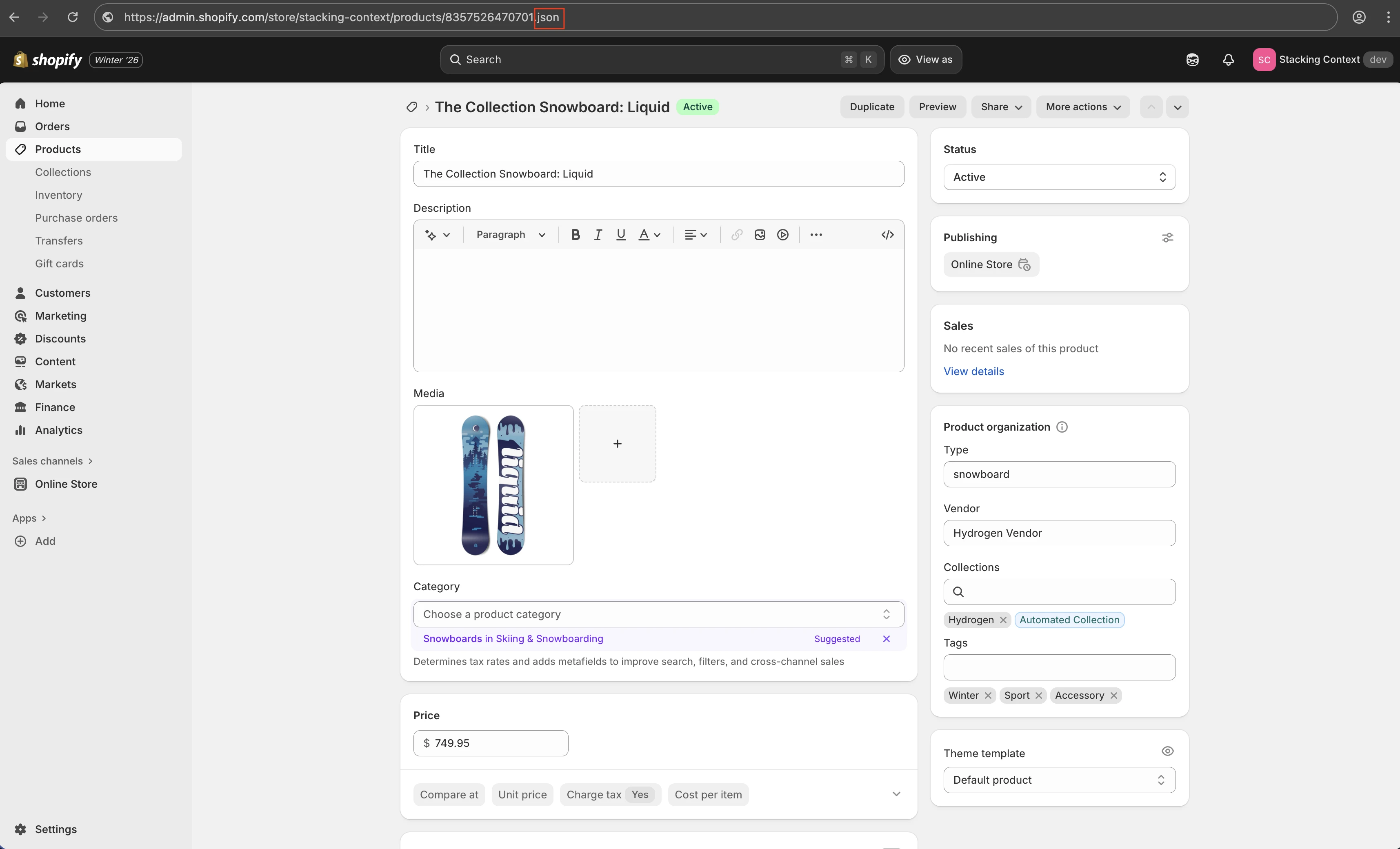
Once there, press enter and you should see a large blob of text. This is JSON, a data structure commonly used for storing information across the web.
At first glance it will be difficult to parse visually, so if your browser has the built-in Pretty-print option you can toggle it on and that should improve the readability of the information.
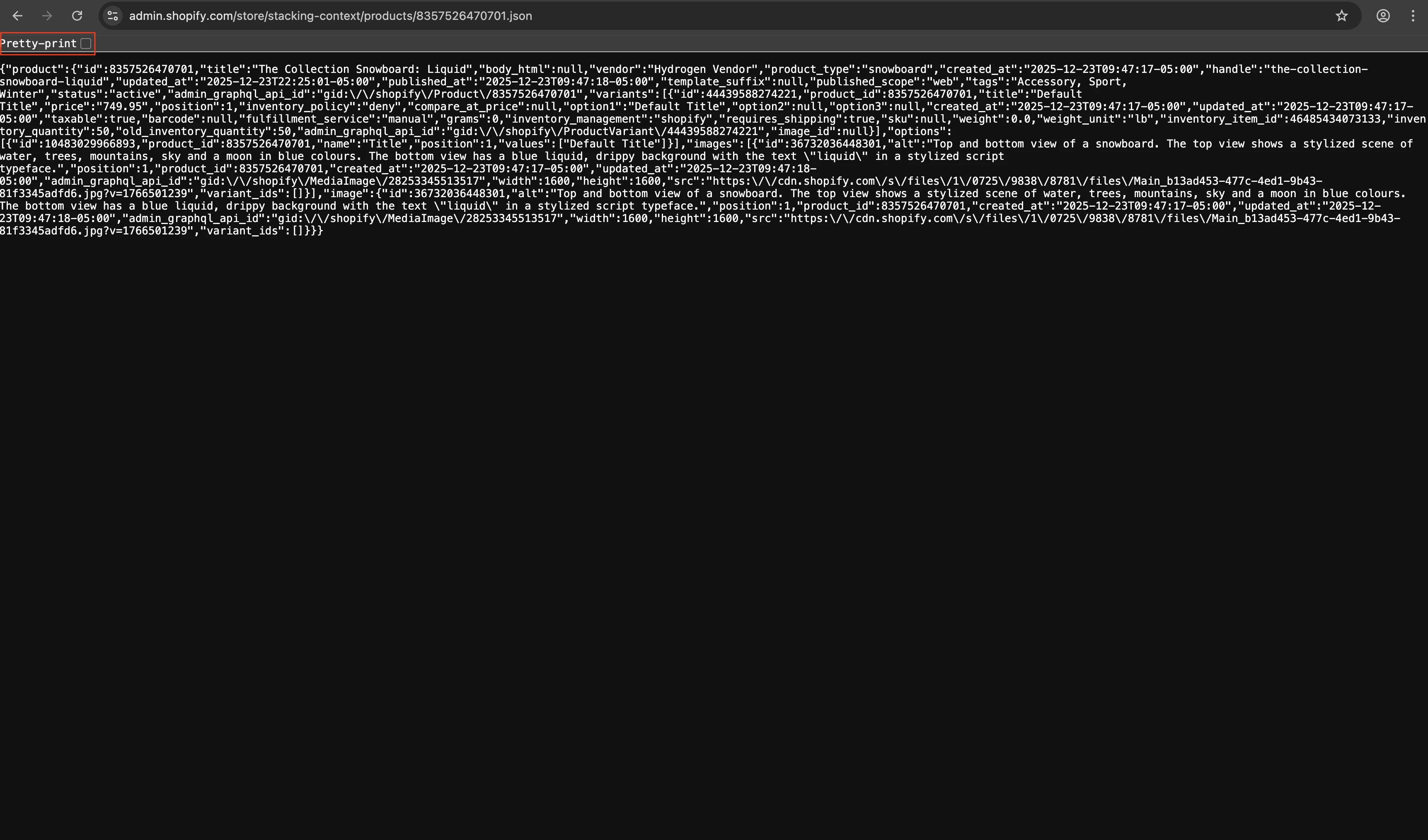
In case your browser doesn’t come with a way to prettify these results you can copy the text, go to any JSON Formatter online, and paste the text there.
In the formatted output, look for "variants" and from there the first "id" we find there is the variant ID of the Default Variant, which is how Shopify calls the variant they automatically create for products with no merchant-defined variants.
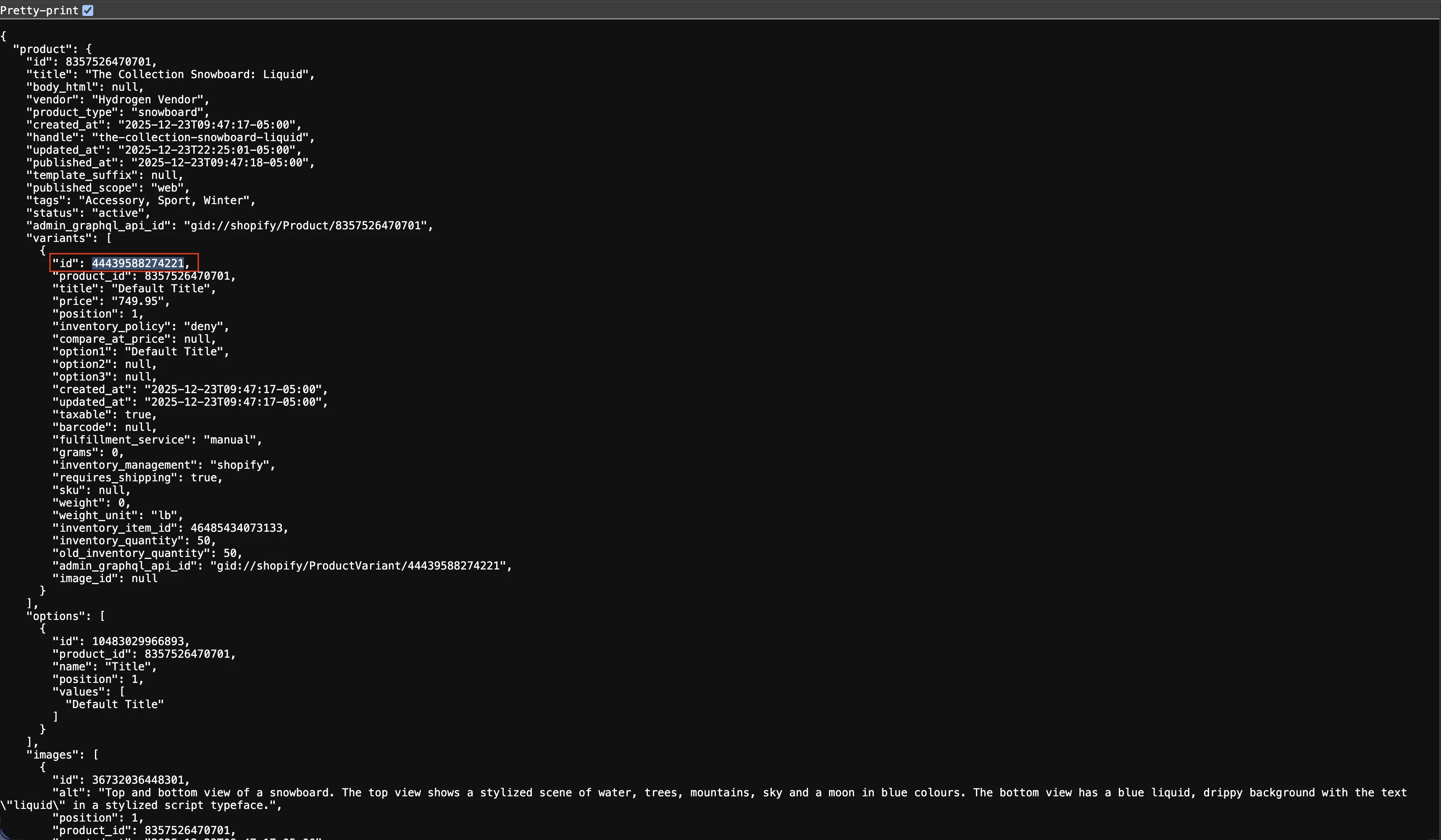
In this example the resulting variant ID is 44439588274221 and this can be used anywhere you need to use a variant ID.
Using the Variant ID Finder Tool
In case you don’t want to deal with the methods described above you can also use the free Variant ID Finder Tool in our website. You just have to paste the URL of the product whose variant ID you want to get and the tool will use Shopify’s API to fetch that for you and display it in a convenient way for you to copy right away. It works with products that have multiple variants or no merchant-defined variants, the only requirement is that your store is not password-protected so Shopify’s public API can return the information needed to display your variant IDs in this page.
Conclusion
Knowing how to find a variant ID in Shopify is a small but essential skill when working with themes, custom links, or advanced storefront behavior. Whether a product has multiple variants or only Shopify’s default one, the variant ID is always there and accessible with the right approach.
For products with multiple variants, the storefront URL is usually all you need. For products with a single variant, the Shopify Admin JSON endpoint provides a reliable fallback. Once you know where to look, grabbing a variant ID becomes a quick and repeatable task that can save time and prevent configuration errors later on.
If you regularly work with Shopify themes or custom tooling, keeping these methods in mind will make your workflow smoother and more predictable.